
null
How to Personalize Your Windows 11 Taskbar?

How to Personalize Your Windows 11 Taskbar?

August 10, 2022

Windows 11 is the most advanced and latest version of the operating system by Microsoft. It comes with a fresh look and changes in UI. This includes a revamped Start menu and taskbar. These changes in visuals are no doubt refreshing but may be uncomfortable for some users. If you do not like this new layout, you can tweak some settings to personalize your Windows 11 Taskbar. Moreover, adding a personal touch to your PC is always exciting. If you don’t already have it,  buy Windows 11 Professional to boost the productivity and efficiency of your business.

Although the taskbar in Windows 11 is fixed at the bottom, you can still toggle some settings to change its alignment and icons. Customizing your desktop can result in better productivity and boost your speed while doing tasks. This blog will provide you with some tips to change the appearance of the taskbar on your Windows 11 PC.

Move Icons To The Left

Windows 11 comes with the Start menu at the center of the screen. Although it is a fresh and new look that may be exciting for some users, it may not be pleasant for others. Most people who have been using the previous versions of Windows are used to having the Start menu on the left corner at the bottom of the screen. If you wish to move the icon to the left, follow these instructions:

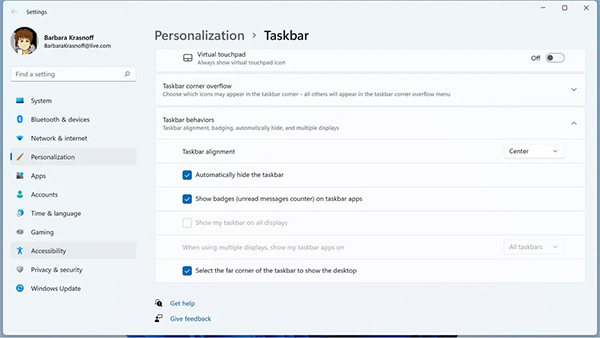
  • Right-click on the taskbar, then go to Taskbar settings.
  • Next, press Taskbar behaviors.
  • Then in the Taskbar alignment section, click on the button saying Center and select Left.
  • Close the settings. Now you will see the application icons on the left with the Start menu in the corner.

The Taskbar behaviors section also enables you to personalize more. From here, you can tweak the settings of your  Windows 11 Professional OEM that lets you hide the taskbar automatically and taskbar functions on multiple displays. It also shows a badge if you have any unread messages and show the desktop.
Pin An Application

Often we get irritated when looking for the applications we frequently use. However, you can avoid this by pinning apps to the taskbar so you can access them quickly and save time. There are multiple ways how you can pin an application to your taskbar.

If the application is currently running, you will see a line underneath its icon that indicates that it is active. You pin the app by right-clicking the icon and selecting “Pin to taskbar.” Pinning this application will show its icon even after you have closed it.

Another way to pin an app is from its desktop icon when it isn’t running. Simply right-click on the desktop icon of the application you wish to pin. Then click on the “Show more option” to view more actions. Click on “Pin to taskbar” to get its icon on the taskbar.

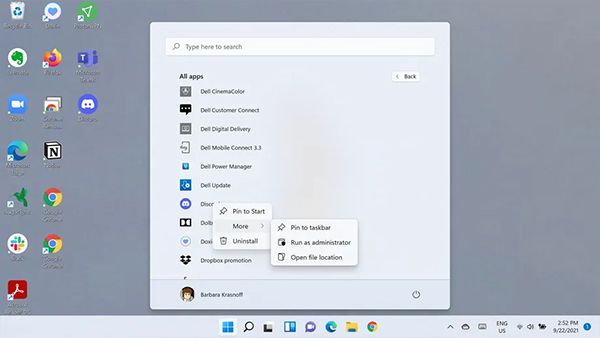
You can also pin an app from the Start Menu. Click on the “All apps” to view the applications on your PC. Right-click on the app you wish to pin and click on “More” if you don’t see the option to pin the app. Lastly, click on the “Pin to taskbar” option to get the icon on the taskbar.
Unpin An Application

If you feel like your taskbar is crowding, you can remove applications that you do not need from it. For most apps, you can simply right-click on the icon and choose “Unpin from taskbar” to remove them. However, some icons like the Start menu icon can’t be removed.

There are also some icons that cannot be removed and can only be hidden. To hide them, right-click on the taskbar and go to Taskbar settings. You can also go there by navigating to Settings > Personalization > Taskbar. From here, you can toggle the Search, Task View, Chat, and Widgets icons to hide them from the taskbar.

Taskbar Corner Overflow and Icons

Purchase Windows 11 Pro to get a revamped Taskbar corner overflow. It is the pop-up menu of icons on the right side of the taskbar. They include icons to access various settings like battery, volume, Wi-Fi, etc. They also show you status and notifications about messages and updates. This feature comes in handy for applications that run in the background. You can also close these applications from the overflow by simply right-clicking on its icon and selecting Quit.

Some permanent icons like Pen menu, Virtual touchpad, and Touch keyboard can only be hidden. To hide these icons, you can go to the Taskbar settings menu. Click on the Taskbar corner overflow and toggle the ones that you do not need.


Buy Microsoft products only from SoftwareDeals. We offer our clients genuine products at cheap rates to meet their IT demands. Get the best  software deals and boost your business productivity and growth with us!

DirectDeals FAQ

Frequently Asked Questions

Everything you need to know before purchasing software, cloud subscriptions, hardware and IT solutions from DirectDeals.

Is DirectDeals an authorized software reseller? +
Yes. DirectDeals holds authorizations with many leading manufacturers and resells only genuine software licenses, cloud subscriptions, hardware, and enterprise IT products sourced through proper authorized channels. As a service-disabled veteran-owned business with more than 27 years of experience, we are committed to providing legitimate products that meet compliance standards. This approach gives IT professionals and business owners complete confidence whether they are purchasing a single license for personal use or managing volume requirements across their organization.
Can businesses request customer quotations? +
Absolutely. Our experienced business specialists work directly with organizations of all sizes to prepare fully customized quotations that align with your specific business size, compliance requirements, infrastructure setup, and budget goals. Whether you need volume licensing for multiple users, support for enterprise software deployments, or a complete technology refresh, we take the time to understand your current environment and deliver a clear competitive proposal featuring genuine products sourced through authorized channels. To get started simply reach out through our contact form, give us a call, or share details about your setup and objectives. We respond promptly with a tailored recommendation that helps you move forward efficiently while maintaining full compliance and strong cost control.
How quickly are software download delivered? +
Most digital software downloads and activation keys are delivered instantly via email through our Electronic Software Delivery service once your order is verified, often within just a few minutes. For certain products that involve manufacturer-delivered downloads or activation keys, processing may take a bit longer depending on the vendor and the manufacturer. However, we submit your order to the manufacturer immediately upon purchase to expedite the delivery timeline as much as possible. Our support team monitors these orders closely and communicates updates promptly so you experience reliable service and minimal delays whether your delivery is instant or requires manufacturer coordination.
Do I need RDS CALs for Remote Desktop Access? +
Yes. Most organizations that provide Remote Desktop access to multiple users or devices will need Microsoft Remote Desktop Services RDS CALs in addition to standard Windows Server CALs. These Client Access Licenses are required to legally allow remote connections to a Windows Server environment and help ensure compliance with Microsoft licensing rules. At DirectDeals we can help you determine the exact number of RDS CALs your specific setup requires and supply genuine licenses at competitive prices so your remote workforce stays productive and fully compliant without unnecessary complexity or risk. Reach out with details about your current environment and we will guide you toward the right solution quickly.
Do you provide cloud solutions? +
Yes. We provide comprehensive cloud solutions including Microsoft Azure and Microsoft 365 subscriptions along with expert guidance on cloud migration and ongoing subscription management for organizations of every size. Whether you are moving workloads to the cloud for the first time, optimizing existing Azure or M365 environments, or aligning licensing with your security and scalability requirements, our team can guide you through the options so you achieve results faster and with less internal effort. Reach out with details about your current setup and goals, and we will help you identify the right path forward with genuine solutions that support your business without unnecessary complexity.
Can DirectDeals help with enterprise deployments? +
Yes. Our experienced team regularly assists organizations with enterprise-scale software deployments from initial procurement and strategic licensing planning through deployment support, renewals, and complete software lifecycle management. We help IT leaders streamline complex projects, maintain compliance across environments, and control long-term costs so they can focus on strategic priorities instead of day-to-day licensing details. Reach out to discuss your current setup and upcoming initiatives, and we can outline how DirectDeals serves as a dependable partner that simplifies the entire process while ensuring you have the genuine solutions your organization needs.
Why DirectDeals

Fast, Simple, and Reliable Software Buying

Everything customers expect before purchasing genuine software, licenses, cloud subscriptions, and IT products online.

Support

Live support with minimal wait time

Connect with our team quickly for product help, licensing guidance, order support, and business quotation assistance.

Savings

Competitive prices and daily deals

Shop genuine software, Microsoft products, server licenses, cloud subscriptions, and IT solutions at highly competitive prices.